

![How to Unarchive a Story on Instagram? [Updated Methods]](https://likefy.com/wp-content/uploads/2025/10/How-to-Unarchive-a-Story-on-Instagram-Updated-Methods.jpg.webp)
Instagram’s archive feature helps you hide old stories without deleting them. You can bring them back whenever you need. If you accidentally archived a story or want to repost a favorite moment, the process is simple once you know where to look.
This easy guide explains unarchiving Instagram stories, finding your stories archive, and restoring an archived post to your profile grid. You will also find tips for managing archived content so you can keep your Instagram profile clean while still keeping your best work close at hand.
What Does It Mean to Unarchive Instagram Stories?
Instagram automatically saves your stories to a private folder, called the Instagram Stories Archive, when the archive option is on. Only you can see archived Instagram stories, and you can turn archiving off if you prefer.
When you “unarchive” a story, you do not remove it from this folder the way you would delete it. Instead, you share the story from your archive as a new story. That action places the story back at the top of your followers’ feeds as a current story, and it also allows you to add it to your highlights for a permanent spot on your profile.
Instagram’s archive feature keeps past stories safe, and unarchiving Instagram stories is the way to bring those past stories back into the spotlight.
Why Do People Want to Unarchive Stories on Instagram?
You may want to recover a story for many reasons. Before we list them, remember that you can access your archived stories anytime and choose the story you want to share again. This gives you a flexible way to bring stories back without cluttering your feed.
- You accidentally archived a story and want to restore it fast.
- You want to repost a holiday memory so followers can view it again.
- You plan on highlighting archived content to showcase your best moments whenever they visit your page.
- You want to archive a story during a campaign and then bring it back later for a recap.
- You want to gather comments and likes again by reposting a popular clip.
- You want to save it to your device and re-edit before reposting.
- You want to add it to your highlights to make the story a permanent feature on your profile.
- You want a better experience by managing archived stories instead of keeping everything live all the time.
How to Unarchive a Story on Instagram? [Step-by-Step]

Follow this step-by-step guide on a mobile device. The process is the same on iPhone and Android in the new Instagram app layout.
- Open the Instagram app. Make sure you are signed in to the right account. If you use more than one Insta account, confirm the username first.
- Go to your profile. Tap the profile icon at the bottom (the icon at the bottom right). You can also reach your profile by tapping your picture anywhere you see it in the app.
- Tap the three lines (menu). At the top of your Instagram profile, tap the three-line icon to open the main menu.
- Open Archive. Tap Archive. At the top of the screen, switch to Stories archive if it does not open there by default. This is the folder that stores your past stories.
- Select the story you want. Scroll through your past stories. Instagram shows them by date. Tap the thumbnail to open the story you want to share.
- Share the story from your archive. Once the story opens, tap Share or Your Story to repost it as a new story. You can add stickers, text, or music before you publish. This method allows you to restore archived stories without changing the original file. It returns the archived story back to your followers’ story tray as a current story.
- Add it to your highlights (optional). To keep the story a permanent part of your profile, tap Highlight and choose an existing highlight or create a new one. That puts the story into a circle at the top of your Instagram profile for easy viewing whenever visitors land on your page.
Important Notes
- Unarchiving Instagram stories is really a form of reposting. The story becomes a new story. Your followers will see it again, and you can edit it before posting.
- If you want a copy for editing, save it to your device from the archive screen first. Then repost after your edits.
- If you need to delete archived stories, open the same story in your archive, tap the three-dot menu, and choose Delete. Do this only if you no longer need the file anywhere, including highlights.
How to Find Archived Stories on Instagram?
You can access your archived content in two main ways. The first way sits where most people expect it, and the second lives under Your activity in the latest Instagram features.
Method 1: From Your Profile Menu

- Open the Instagram app.
- Go to your profile by tapping your picture in the bottom right.
- Tap the three-line menu at the top of your Instagram profile.
- Tap Archive, then choose Stories archive at the top. Here you can access your archived stories, your posts archive, and even live archive.
Method 2: From Your Activity
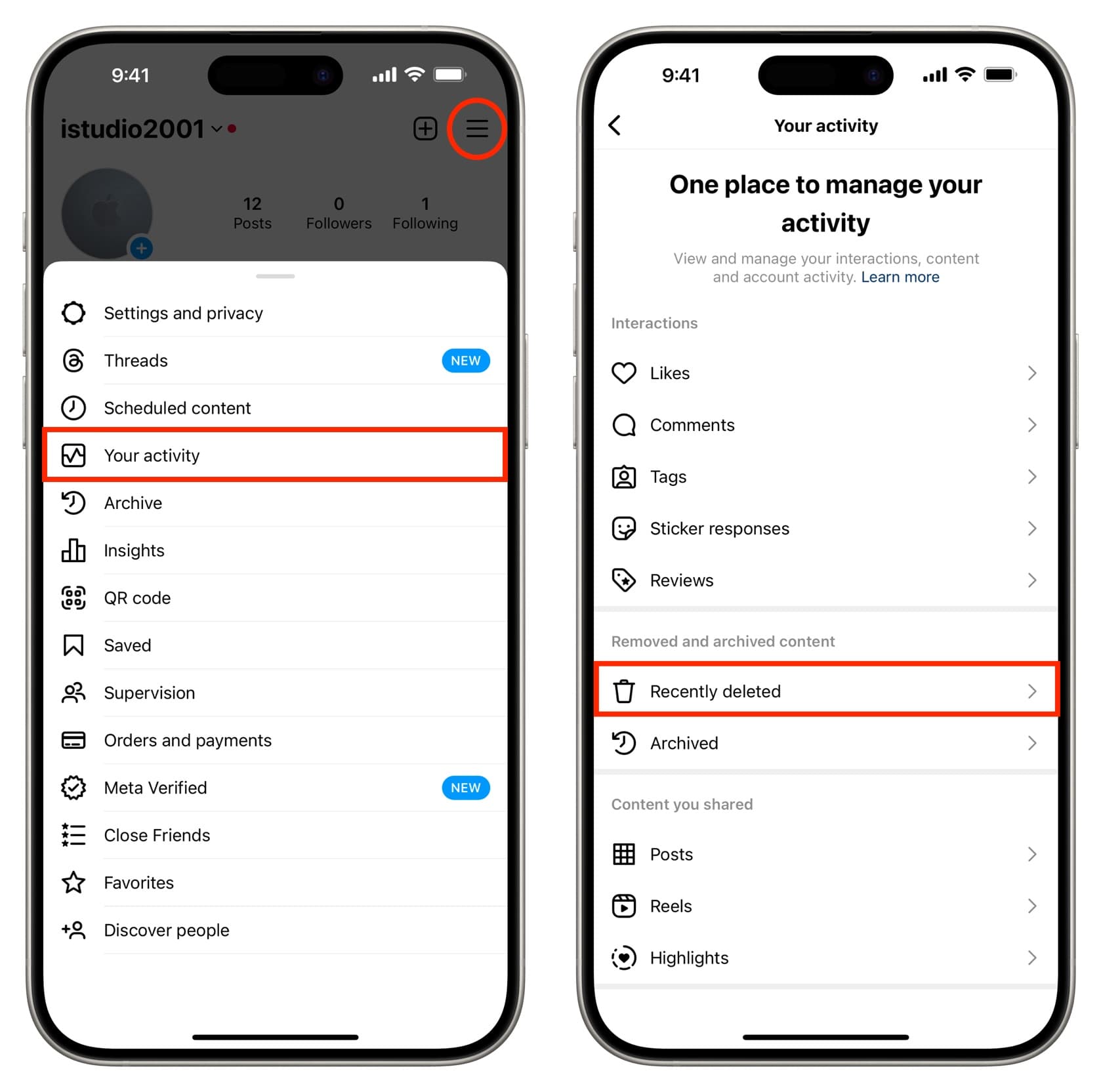
- Go to your profile and tap the three-line menu.
- Tap Your activity.
- Under Removed and archived content, tap Archived, then choose Stories archive. This path is handy if you are managing archived stories while reviewing other activity tools.
These two paths lead to the same place. Pick the path that fits your routine best. If you do not see older clips, confirm that Instagram automatically saves your stories under Settings. If needed, turn on the option to archive Instagram stories so future stories get archived for you.
How to Unarchive a Post on Instagram?

Stories and posts behave differently. Stories reappear by sharing from the archive. Posts return to the grid when you unarchive Instagram posts using “Show on Profile.”
Use these steps to restore an archived post:
- Open the Instagram app and go to your profile by tapping your picture in the bottom right.
- Tap the three-line menu, then tap Archive.
- Switch the top menu to Posts archive.
- Tap the archived post you want to restore.
- Tap the three-dot menu on the post, then tap “Show on Profile” (you may see it phrased as select “show on profile”). The post returns to its original spot on your grid according to the date it was originally posted; it does not jump to the top of your Instagram profile. This option allows you to restore an item while keeping the timeline intact.
Extra Tips
- If you change your mind, you can archive the post again later. The option to archive and unarchive sits in the same three-dot menu.
- When you bring it back, the post keeps its comments and likes, since you did not delete it.
- If you need to delete something, open the post and use the same menu, but remember that delete removes it from the Instagram archive as well in most cases.
This process covers unarchiving Instagram posts across the current app design. The steps above to share or restore work the same on a mobile device whether you use iOS or Android.
Conclusion
Managing archived content gives you control over your feed without losing history. You can hide a busy week, get archived stories out of sight, and still bring it back later with a few taps.
Use the stories archive when you want to repost a memory or turn a story a permanent highlight. Use the posts archive when you want to clean your grid and restore archived images later.


